Using Visual Studio Code
Objectives
Understand how Visual Studio Code (vscode) differs from a regular text editor and from a command line.
Feel comfortable using vscode to edit text.
Background
We talked about what a text editor is in excercise 3, but now we can dig in a little more.
You’re likely used to word processors like Microsoft Word or Apple’s Pages. They can format things very beautifully, but they don’t let you see the actual contents of the file! Formats like Word’s .docx use special characters to define the structure and format of the text, such as if a piece of text is italics, or what size the text should be, but hides these format characters from you!
Text editors function very differently: they don’t hide any of these formatting characters from you. Rather, they display the raw text content of the file you’re looking at. For example, if you open up a .docx file in a text editor, it will look like garbled junk, because of all the characters that Word normally processes but doesn’t display.
We mentioned simple examples of text editors like Vim and Emacs before, but often when we are coding it makes sense to use applications that integrate these minimal text editors with tools that help us write code like debuggers and command lines. These more complex editing applications are called Integrated Development Environments, or IDEs.
For this class, we will be using an open source IDE called Visual Studio Code,
or vscode. This editor is already installed on the lab machines. You can launch
it by clicking on the start menu in the top left corner of your screen and
searching for “code,” then clicking on the launcher. You can also launch it from
the terminal by typing code and hitting enter.
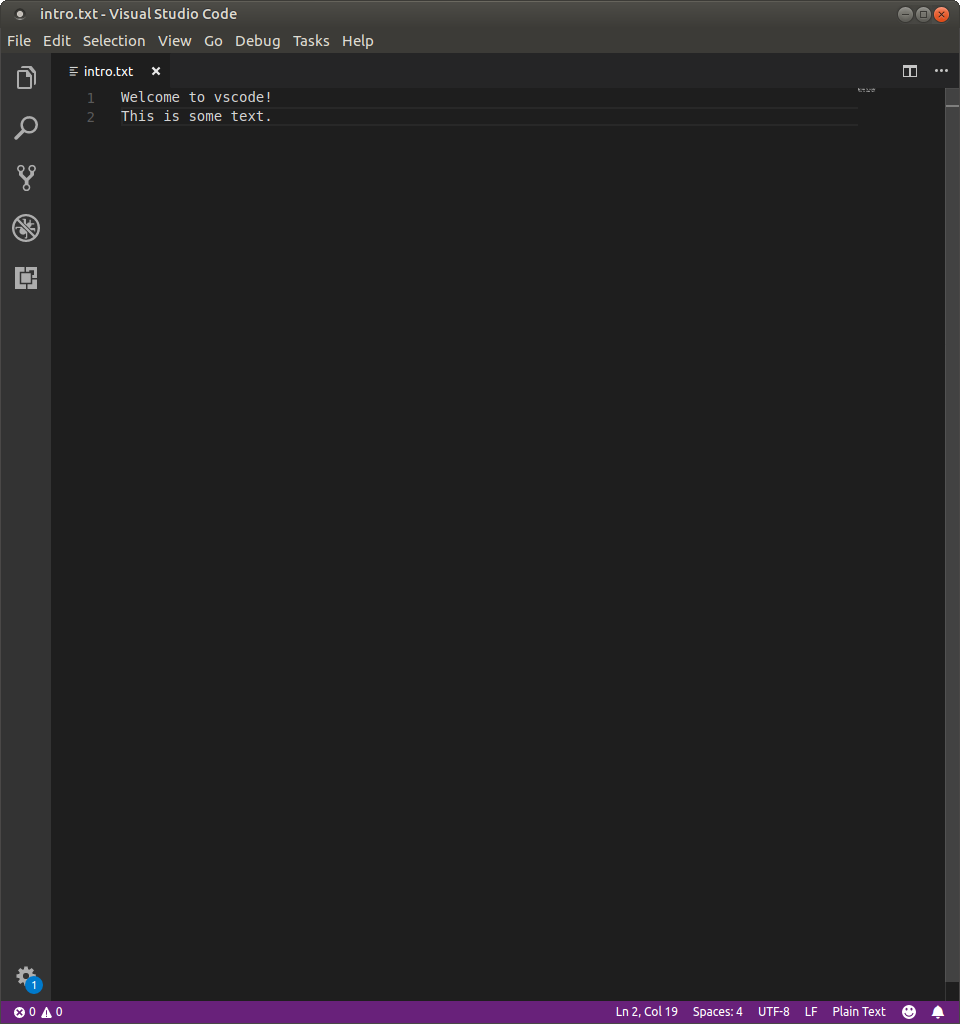
Once you’re in vscode, go ahead and open up a new empty file by going to File->New File, or typing Ctrl-N.
Put some random text in this file and save it where ever you like!
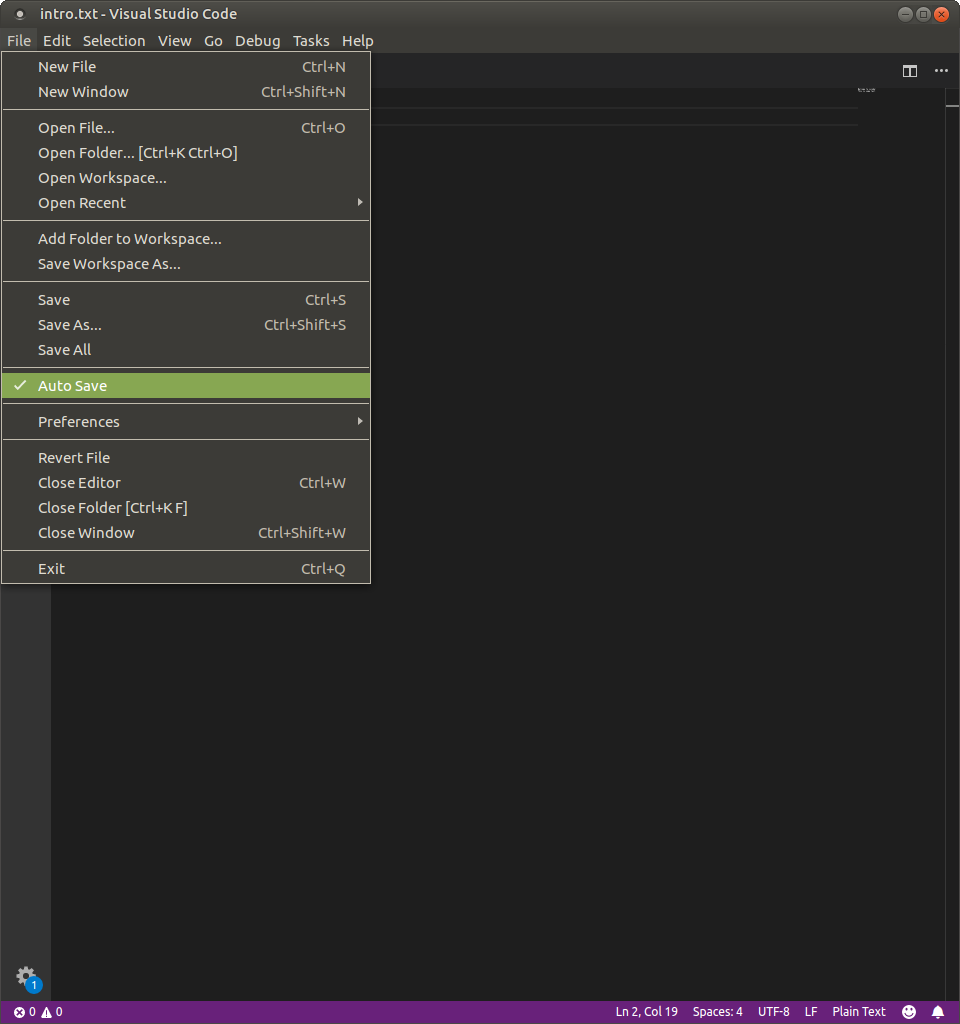
It’s a good idea to set vscode to autosave files for you, which can be done from the File menu.
Arranging Things
Try arranging and resizing your windows so that you can see both the browser (these instructions) and your text editor side-by-side
It’s amazing how much more efficient you can be when you don’t need to click to different windows!
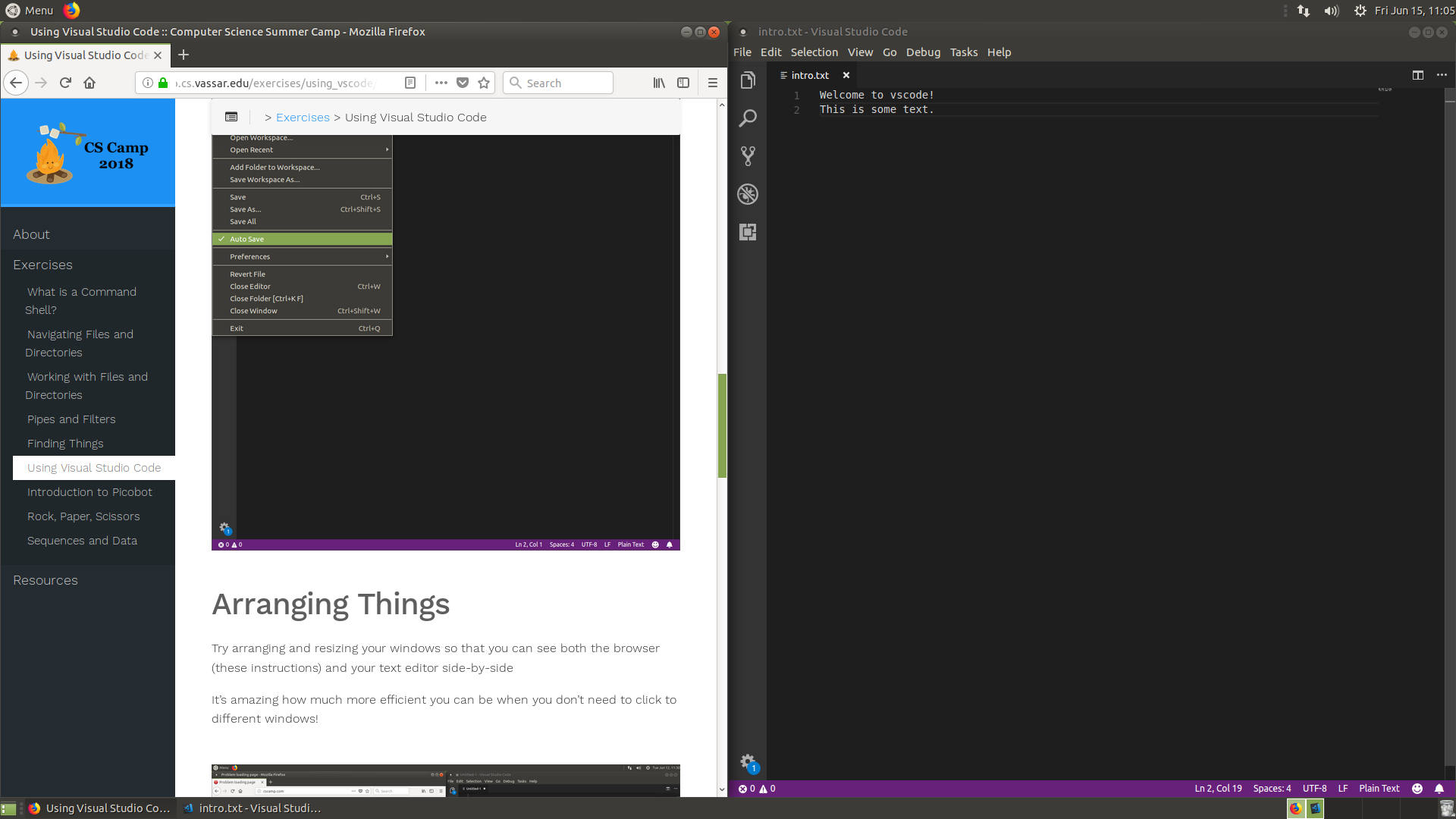
Here, we can see both our web browser and vscode, which let’s us look at documentation or, for example, this exercise while we’re in vscode!
A Terminal in VSCode!
We’ve already spent a lot of time covering command shells, often called terminals, and why they are useful for programming and computer science in general.
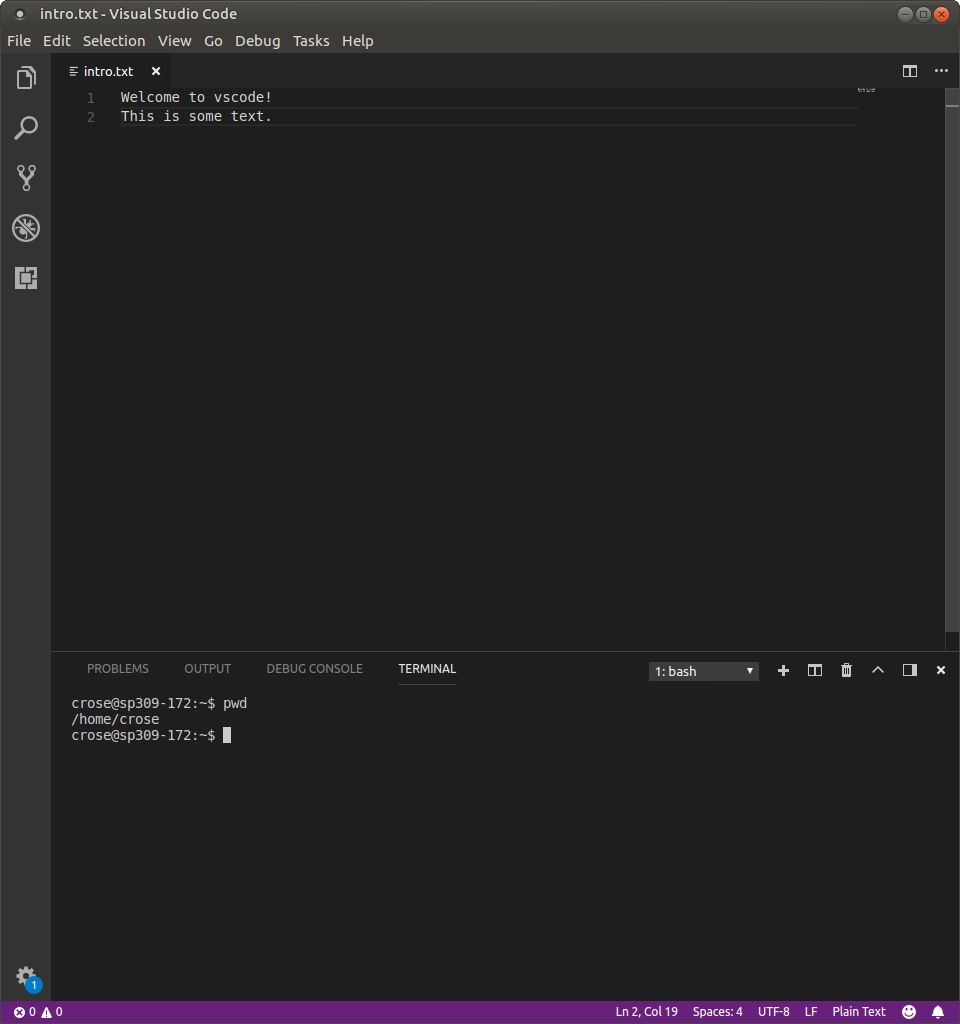
vscode let’s us readily access a terminal by going to View->Integrated Terminal, or typing Ctrl-` (that’s a backtick, which is the key just to the left of 1.)
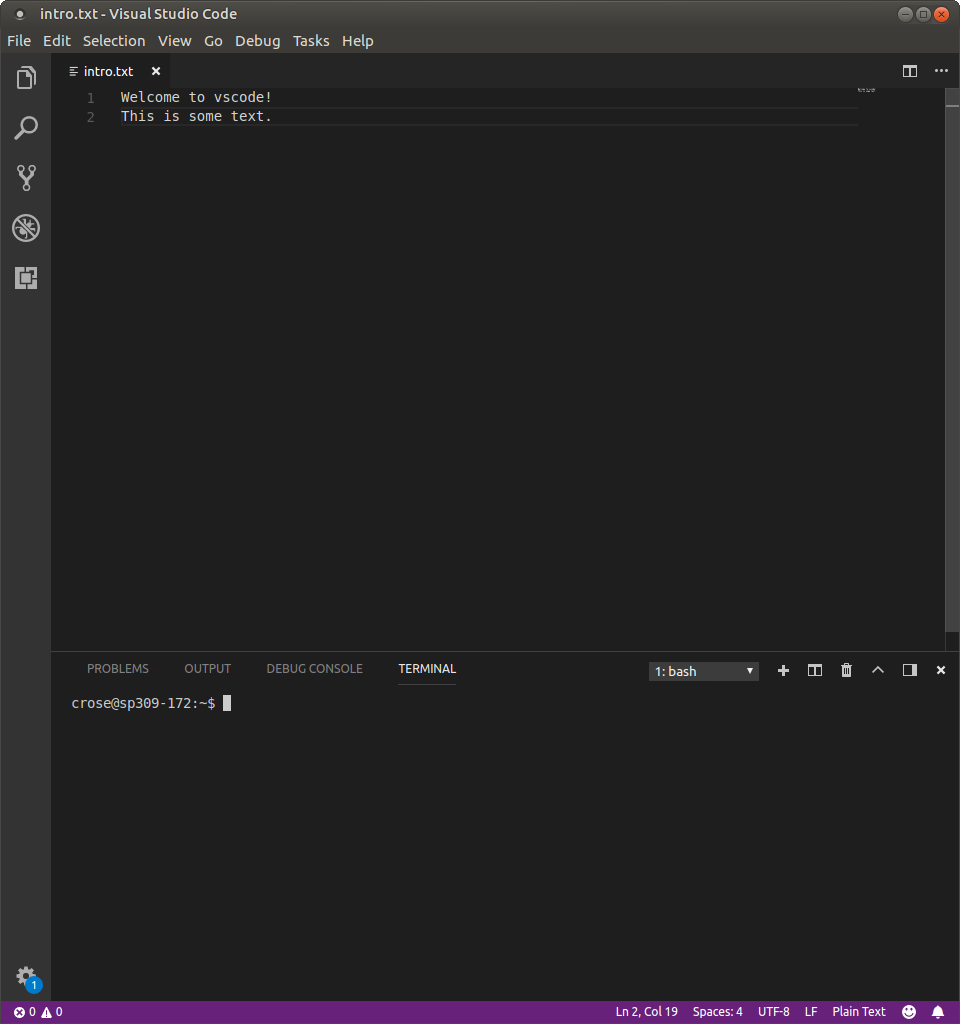
vscode exposes a regular old terminal for us!
Now you can use this terminal just as we have been learning about.
Key Points
- vscode is an IDE, which provides us a text editor and tools to program like an integrated shell (terminal).