Pipes and Filters
Objectives
Redirect a command’s output to a file.
Process a file instead of keyboard input using redirection.
Construct command pipelines with two or more stages.
Explain what usually happens if a program or pipeline isn’t given any input to process.
Explain Unix’s ‘small pieces, loosely joined’ philosophy.
Background
Now that we know a few basic commands, we can finally look at the shell’s most
powerful feature: the ease with which it lets us combine existing programs in
new ways. We’ll start with a directory called molecules that contains six files
describing some simple organic molecules. The .pdb extension indicates that
these files are in Protein Data Bank format, a simple text format that specifies
the type and position of each atom in the molecule.
Let’s go into that directory with cd and run the command wc *.pdb. wc is
the ‘word count’ command: it counts the number of lines, words, and characters
in files. The * in *.pdb matches zero or more characters, so the shell turns
*.pdb into a list of all .pdb files in the current directory:
Wildcards
* is a wildcard. It matches zero or more characters, so *.pdb matches
ethane.pdb, propane.pdb, and every file that ends with .pdb. On the other
hand, p*.pdb only matches pentane.pdb and propane.pdb, because the ‘p’ at
the front only matches filenames that begin with the letter ‘p’.
? is also a wildcard, but it only matches a single character. This means that
p?.pdb would match pi.pdb or p5.pdb (if we had these two files in the
molecules directory), but not propane.pdb. We can use any number of wildcards
at a time: for example, p*.p?* matches anything that starts with a ‘p’ and
ends with ‘.p’, and at least one more character (since the ? has to match one
character, and the final * can match any number of characters). Thus, p*.p?*
would match preferred.practice, and even p.pi (since the first * can match
no characters at all), but not quality.practice (doesn’t start with ‘p’) or
preferred.p (there isn’t at least one character after the ‘.p’).
When the shell sees a wildcard, it expands the wildcard to create a list of
matching filenames before running the command that was asked for. As an
exception, if a wildcard expression does not match any file, Bash will pass the
expression as an argument to the command as it is. For example typing ls *.pdf
in the molecules directory (which contains only files with names ending with
.pdb) results in an error message that there is no file called *.pdf.
However, generally commands like wc and ls see the lists of file names
matching these expressions, but not the wildcards themselves. It is the shell,
not the other programs, that deals with expanding wildcards, and this is another
example of orthogonal design.
Challenge: Using Wildcards
When run in the molecules directory, which
lscommand(s) will produce this output?
ls *t*ane.pdbls *t?ne.*ls *t??ne.pdbls ethane.*
Challenge: More on Wildcards
Sam has a directory containing calibration data, datasets, and descriptions of the datasets:
Before heading off to another field trip, she wants to back up her data and send some datasets to her colleague Bob. Sam uses the following commands to get the job done:
Help Sam by filling in the blanks.
Looking at File Length
If we run wc -l instead of just wc, the output shows only the number of
lines per file:
We can also use -w to get only the number of words, or -c to get only the
number of characters.
Which of these files is shortest? It’s an easy question to answer when there are only six files, but what if there were 6000? Our first step toward a solution is to run the command:
The greater than symbol, >, tells the shell to redirect the command’s output
to a file instead of printing it to the screen. (This is why there is no screen
output: everything that wc would have printed has gone into the file
lengths.txt instead.) The shell will create the file if it doesn’t exist. If
the file exists, it will be silently overwritten, which may lead to data loss
and thus requires some caution. ls lengths.txt confirms that the file exists:
We can now send the content of lengths.txt to the screen using cat lengths.txt. cat stands for ‘concatenate’: it prints the contents of files
one after another. There’s only one file in this case, so cat just shows us
what it contains:
We’ll continue to use cat in this lesson, for convenience and consistency, but
it has the disadvantage that it always dumps the whole file onto your screen.
More useful in practice is the command less, which you use with less lengths.txt. This displays a screenful of the file, and then stops. You can go
forward one screenful by pressing the Spacebar, or back one by
pressing b. Press q to quit.
Using sort
Now let’s use the sort command to sort its contents.
Challenge: What Does
sort -nDo?If we run
sorton a file containing the following lines:
the output is:
If we run
sort -non the same input, we get this instead:
Why does the
-nflag have this effect?
We will now use the -n flag to specify that the sort is numerical instead of
alphabetical. This does not change the file; instead, it sends the sorted result
to the screen:
We can put the sorted list of lines in another temporary file called
sorted-lengths.txt by putting > sorted-lengths.txt after the command, just
as we used > lengths.txt to put the output of wc into lengths.txt. Once
we’ve done that, we can run another command called head to get the first few
lines in sorted-lengths.txt:
Using -n 1 with head tells it that we only want the first line of the file;
-n 20 would get the first 20, and so on. Since sorted-lengths.txt contains
the lengths of our files ordered from least to greatest, the output of head
must be the file with the fewest lines.
Redirecting To The Same File
It’s a very bad idea to try redirecting the output of a command that operates on
a file to the same file. For example:
sort -n lengths.txt > lengths.txt
Doing something like this may give you incorrect results and/or delete the
contents of lengths.txt.
Challenge: What Does
>>Mean?We have seen the use of
>, but there is a similar operator>>which works slightly differently. By using theechocommand to print strings, test the commands below to reveal the difference between the two operators:
and:
Try executing each command twice in a row and then examining the output files.
Challenge: Appending Data
We have already met the
headcommand, which prints lines from the start of a file.tailis similar, but prints lines from the end of a file instead.Consider the file
data-shell/data/animals.txt. After these commands, select the answer that corresponds to the fileanimalsUpd.txt:
- The first three lines of
animals.txt- The last two lines of
animals.txt- The first three lines and the last two lines of
animals.txt- The second and third lines of
animals.txt
Piping
If you think this is confusing, you’re in good company: even once you understand
what wc, sort, and head do, all those intermediate files make it hard to
follow what’s going on. We can make it easier to understand by running sort
and head together:
The vertical bar, |, between the two commands is called a pipe. It tells the
shell that we want to use the output of the command on the left as the input to
the command on the right. The computer might create a temporary file if it needs
to, or copy data from one program to the other in memory, or something else
entirely; we don’t have to know or care.
Nothing prevents us from chaining pipes consecutively. That is, we can for
example send the output of wc directly to sort, and then the resulting
output to head. Thus we first use a pipe to send the output of wc to sort:
And now we send the output of this pipe, through another pipe, to head, so
that the full pipeline becomes:
This is exactly like a mathematician nesting functions like log(3x) and saying
’the log of three times x’. In our case, the calculation is ‘head of sort of
line count of *.pdb’.
Challenge: Piping Commands Together
In our current directory, we want to find the 3 files which have the least number of lines. Which command listed below would work?
wc -l * > sort -n > head -n 3wc -l * | sort -n | head -n 1-3wc -l * | head -n 3 | sort -nwc -l * | sort -n | head -n 3
Here’s what actually happens behind the scenes when we create a pipe. When a computer runs a program — any program — it creates a process in memory to hold the program’s software and its current state. Every process has an input channel called standard input. (By this point, you may be surprised that the name is so memorable, but don’t worry: most Unix programmers call it ‘stdin’). Every process also has a default output channel called standard output (‘stdout’). A second output channel called standard error (‘stderr’) also exists. This channel is typically used for error or diagnostic messages, and it allows a user to pipe the output of one program into another while still receiving error messages in the terminal.
The shell is actually just another program. Under normal circumstances, whatever we type on the keyboard is sent to the shell on its standard input, and whatever it produces on standard output is displayed on our screen. When we tell the shell to run a program, it creates a new process and temporarily sends whatever we type on our keyboard to that process’s standard input, and whatever the process sends to standard output to the screen.
Here’s what happens when we run wc -l *.pdb > lengths.txt. The shell starts by
telling the computer to create a new process to run the wc program. Since
we’ve provided some filenames as arguments, wc reads from them instead of from
standard input. And since we’ve used > to redirect output to a file, the shell
connects the process’s standard output to that file.
If we run wc -l *.pdb | sort -n instead, the shell creates two processes (one
for each process in the pipe) so that wc and sort run simultaneously. The
standard output of wc is fed directly to the standard input of sort; since
there’s no redirection with >, sort’s output goes to the screen. And if we
run wc -l *.pdb | sort -n | head -n 1, we get three processes with data
flowing from the files, through wc to sort, and from sort through head to
the screen.
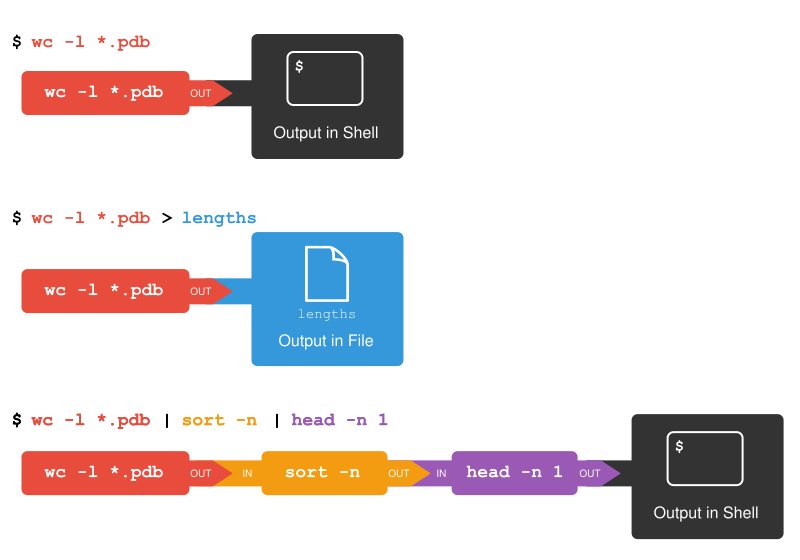
This simple idea is why Unix has been so successful. Instead of creating
enormous programs that try to do many different things, Unix programmers focus
on creating lots of simple tools that each do one job well, and that work well
with each other. This programming model is called ‘pipes and filters’. We’ve
already seen pipes; a filter is a program like wc or sort that transforms a
stream of input into a stream of output. Almost all of the standard Unix tools
can work this way: unless told to do otherwise, they read from standard input,
do something with what they’ve read, and write to standard output.
The key is that any program that reads lines of text from standard input and writes lines of text to standard output can be combined with every other program that behaves this way as well. You can and should write your programs this way so that you and other people can put those programs into pipes to multiply their power.
Redirecting Input
As well as using > to redirect a program’s output, we can use < to redirect
its input, i.e., to read from a file instead of from standard input. For
example, instead of writing wc ammonia.pdb, we could write wc < ammonia.pdb.
In the first case, wc gets a command line argument telling it what file to
open. In the second, wc doesn’t have any command line arguments, so it reads
from standard input, but we have told the shell to send the contents of
ammonia.pdb to wc’s standard input.
Challenge: What Does
<Mean?
Change directory to data-shell (the top level of our downloaded example data).
What is the difference between:
and:
Challenge: Why Does
uniqOnly Remove Adjacent Duplicates?The command
uniqremoves adjacent duplicated lines from its input. For example, the filedata-shell/data/salmon.txtcontains:
Running the command
uniq salmon.txtfrom thedata-shell/datadirectory produces:
Why do you think
uniqonly removes adjacent duplicated lines? What other command could you combine with it in a pipe to remove all duplicated lines?
Challenge: Pipe Reading Comprehension
A file called
animals.txt(in thedata-shell/datafolder) contains the following data:
What text passes through each of the pipes and the final redirect in the pipeline below?
Build the pipeline up one command at a time to test your understanding.
Challenge: Pipe Construction
For the file
animals.txtfrom the previous exercise, the command:
uses the
-dflag to separate each line by comma, and the-fflag to print the second field in each line, to give the following output:
What other command(s) could be added to this in a pipeline to find out what animals the file contains (without any duplicates in their names)?
Challenge: Which Pipe?
The file
animals.txtcontains 586 lines of data formatted as follows:
Assuming your current directory is
data-shell/data/, what command would you use to produce a table that shows the total count of each type of animal in the file?
grep {deer, rabbit, raccoon, deer, fox, bear} animals.txt | wc -lsort animals.txt | uniq -csort -t, -k2,2 animals.txt | uniq -ccut -d, -f 2 animals.txt | uniq -ccut -d, -f 2 animals.txt | sort | uniq -ccut -d, -f 2 animals.txt | sort | uniq -c | wc -l
Nelle’s Pipeline: Checking Files
Nelle has run her samples through the assay machines and created 17 files in the
north-pacific-gyre/2012-07-03 directory described earlier. As a quick sanity
check, starting from her home directory, Nelle types:
The output is 18 lines that look like this:
Now she types this:
Whoops: one of the files is 60 lines shorter than the others. When she goes back and checks it, she sees that she did that assay at 8:00 on a Monday morning — someone was probably in using the machine on the weekend, and she forgot to reset it. Before re-running that sample, she checks to see if any files have too much data:
Those numbers look good — but what’s that ‘Z’ doing there in the third-to-last line? All of her samples should be marked ‘A’ or ‘B’; by convention, her lab uses ‘Z’ to indicate samples with missing information. To find others like it, she does this:
Sure enough, when she checks the log on her laptop, there’s no depth recorded
for either of those samples. Since it’s too late to get the information any
other way, she must exclude those two files from her analysis. She could just
delete them using rm, but there are actually some analyses she might do later
where depth doesn’t matter, so instead, she’ll just be careful later on to
select files using the wildcard expression *[AB].txt. As always, the *
matches any number of characters; the expression [AB] matches either an ‘A’ or
a ‘B’, so this matches all the valid data files she has.
Challenge: Wildcard Expressions
Wildcard expressions can be very complex, but you can sometimes write them in ways that only use simple syntax, at the expense of being a bit more verbose. Consider the directory
data-shell/north-pacific-gyre/2012-07-03: the wildcard expression*[AB].txtmatches all files ending inA.txtorB.txt. Imagine you forgot about this.
- Can you match the same set of files with basic wildcard expressions that do not use the
[ ]syntax?TipYou may need more than one expression.
- The expression that you found and the expression from the lesson match the same set of files in this example. What is the small difference between the outputs?
- Under what circumstances would your new expression produce an error message where the original one would not?
Challenge: Removing Unneeded Files
Suppose you want to delete your processed data files, and only keep your raw files and processing script to save storage. The raw files end in
.datand the processed files end in.txt. Which of the following would remove all the processed data files, and only the processed data files?
rm ?.txtrm *.txtrm * .txtrm *.*
Key Points
catdisplays the contents of its inputs.headdisplays the first few lines of its input.taildisplays the last few lines of its input.sortsorts its inputs.wccounts lines, words, and characters in its inputs.*matches zero or more characters in a filename, so*.txtmatches all files ending in.txt.?matches any single character in a filename, so?.txtmatchesa.txtbut notany.txt.command > fileredirects a command’s output to a file.first | secondis a pipeline: the output of the first command is used as the input to the second.The best way to use the shell is to use pipes to combine simple single-purpose programs (filters).
Gabriel Devenyi, Christina Koch, and Ashwin Srinath (eds): “Software Carpentry: The Unix Shell.” Version 2016.06, June 2016, https://github.com/swcarpentry/shell-novice