Navigating Files and Directories
Objectives
Explain the similarities and differences between a file and a directory.
Translate an absolute path into a relative path and vice versa.
Construct absolute and relative paths that identify specific files and directories.
Demonstrate the use of tab completion, and explain its advantages.
Background
The part of the operating system responsible for managing files and directories is called the file system. It organizes our data into files, which hold information, and directories (also called “folders”), which hold files or other directories.
Nowadays, the average user interacts with the filesystem through a GUI (graphical user interface). On Mac, it’s called Finder, and on Windows, it’s called Windows Explorer. In this exercise, rather than a GUI, we’ll be using the command line to interact with the Linux filesystem.
Getting Started
First let’s find out where we are by running a command called pwd (which
stands for “print working directory”). Directories are like places — at any
time while we are using the shell we are in exactly one place, called our
current working directory. Commands mostly read and write files in the
current working directory, i.e. “here”, so knowing where you are before running
a command is important.
Here, the computer’s response is /home/nelle, which is Nelle’s home
directory.
To understand what a “home directory” is, let’s have a look at how the file system as a whole is organized. For the sake of this example, we’ll be illustrating the filesystem on our scientist Nelle’s computer. After this illustration, you’ll be learning commands to explore your own filesystem!
On Nelle’s computer, the filesystem looks like this:
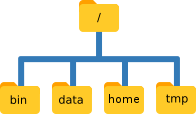
At the top is the root directory that holds everything. We refer to it
using a slash character ( / ) on its own; this is the leading slash in
/home/nelle.
There are two meanings for the / character. When it appears at the
front of a file or directory name, it refers to the root directory. When it
appears inside a name, it’s just a separator.
Inside that directory are several other directories: bin (which is where some
built-in programs are stored), data (for miscellaneous data files), home
(where users’ personal directories are located), tmp (for temporary files that
don’t need to be stored long-term), and so on.
We know that our current working directory /home/nelle is stored inside
/home because /home is the first part of its name. Similarly, we know that
/home is stored inside the root directory ( / ) because its name begins with
/.
Users
Underneath /home (that is, inside the /home directory), we find one
directory for each user with an account on Nelle’s computer, her colleagues the
Mummy and Wolfman. The Mummy’s files are stored in /home/imhotep, Wolfman’s in
/home/larry, and Nelle’s in /home/nelle.
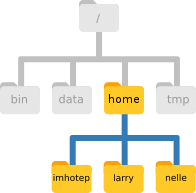
In our examples thusfar, Nelle is the current user logged in to her computer,
which is why the current home directory is /home/nelle/.
When we enter the command pwd, we’re asking the computer to tell us what our
current working directory is. When Nelle tried out pwd just before, they
did so immediately after opening the command prompt. Because command prompts
typically start in the user’s home directory, the computer responded to
pwd by printing /home/nelle (the home directory).
The ls Command
Now let’s learn the command that will let us see the contents of our own
filesystem. We can see what’s in our working directory (which is currently
our home directory) by running ls, which stands for “listing”:
ls prints the names of the files and directories in the current directory. We
can make its output more comprehensible by using the flag -F, which tells
ls to add a marker to file and directory names to indicate what they are. A
trailing / indicates that this is a directory. Depending on your settings, it
might also use colors to indicate whether each entry is a file or directory.
If you have changed around the layout of your home directory, it may look
different, but that’s okay! Regardless, you can at any time confirm that you’re
in your home directory by checking the output of pwd.
Getting Help
ls has lots of other flags. There are two common ways to find out how to
use a command and what flags it accepts. We will talk about both here.
1. We can pass a --help flag to the command, such as:
2. We can read its manual with man, such as:
The --help Flag
Many bash commands (and programs that people have written that can be run from
within bash) support a --help flag to display more information on how to use
the command or program. Below is the result of entering the command ls --help,
but feel free to try it out yourself!
Unsupported Flags
If you try to use a flag that is not supported, ls and other programs will
usually print an error message similar to:
The man Command
The other way to learn about ls is to type:
This will turn your terminal into a page with a description of the ls command
colloquially called a “man page”.
To navigate through the man page, you may use ↑ and ↓ to
move line-by-line, or try b and Spacebar to skip up and
down by a full page, respectively. To search for a character or word in the man
pages, use / followed by the character or word you are searching for (and then
Enter).
To quit the man pages, press q.
On non-linux computers, you may find that these methods have varying success.
Lots and lots of man pages are online, and you can usually find them pretty fast
by appending “unix man page” to commands (and other things!) in a Google search
(e.g. “ls unix man page” for ls).
Challenge: Exploring More
lsFlagsWhat does the command
lsdo when used with the-land-hflags? Some of its output is about properties that we do not cover in this lesson (such as file permissions and ownership), but the rest should be useful nevertheless.
Challenge: Listing Recursively By Time
The command
ls -Rlists the contents of directories recursively, i.e., lists their sub-directories, sub-sub-directories, and so on at each level. The commandls -tlists things by time of last change, with most recently changed files or directories first. In what order doesls -R -tdisplay things?Hint: You can use the
-lflag to view timestamps without affecting listing order.
In most command line tools, multiple flags can be combined after a
single - with no spaces between the flags: ls -R -t is equivalent to ls -Rt.
Outside The Working Directory
If we try using ls -F again in our home directory, we can see that it
contains mostly sub-directories. Any names in your output that don’t have
trailing slashes ( / ) are plain old files. Also note that there is a space
between ls and -F: without it, the shell thinks we’re trying to run a
command called ls-F, which doesn’t exist.
We can also use ls to see the contents of a different directory. Let’s take a
look at our Desktop directory by running ls -F Desktop, i.e., the command
ls with the flag -F and the argument Desktop. The argument Desktop
tells ls that we want a listing of something other than our working directory:
Your output should be a list of all the files and sub-directories on your Desktop, including the data-shell directory you downloaded at the setup for this lesson. Take a look at your Desktop to confirm that your output is accurate.
If you don’t see a directory called “data-shell” or a file called “data-shell.tar” in your Desktop, you can download it here.
As you may now see, using a bash shell is strongly dependent on the idea that your files are organized in a hierarchical file system. Organizing things hierarchically in this way helps us keep track of our work: it’s possible to put hundreds of files in our home directory, just as it’s possible to pile hundreds of printed papers on our desk, but it’s a self-defeating strategy.
Now that we know the data-shell directory is located on our Desktop, we can do two things.
First, we can look at its contents, using the same strategy as before, passing a
directory name to ls:
Second, we can actually change our location to a different directory, so we are no longer located in our home directory.
The command to change locations is cd followed by a directory name to change
our working directory. cd stands for “change directory”, which is a bit
misleading: the command doesn’t change the directory, it changes the shell’s
idea of what directory we are in. That is, it changes our working directory.
Let’s say we want to move to the data directory we saw above. We can use the following series of commands to get there:
These commands will move us from our home directory onto our Desktop, then into
the “data-shell” directory, then into the “data” directory. cd doesn’t print
anything, but if we run pwd after it, we can see that we are now in
/home/nelle/Desktop/data-shell/data. If we run ls without arguments now, it
lists the contents of /home/nelle/Desktop/data-shell/data, because that’s
where we now are (i.e. that’s our current working directory):
We now know how to go down the directory tree, but how do we go up? We might try the following:
But we get an error! Why is this?
With our methods so far, cd can only see sub-directories inside your current directory. There are different ways to see directories above your current location; we’ll start with the simplest.
There is a shortcut in the shell to move up one directory level that looks like this:
$ cd .... is a special directory name meaning “the directory containing this one”, or
more succinctly, the parent of the current directory. Sure enough, if we run
pwd after running cd .., we’re back in /home/nelle/Desktop/data-shell:
The special directory .. doesn’t usually show up when we run ls. If we want
to display it, we can give ls the -a flag:
-a stands for “show all”; it forces ls to show us file and directory
names that begin with ., such as .. (which, if we’re in /home/nelle,
refers to the /home directory). As you can see, it also displays another
special directory that’s just called ., which means “the current working
directory”. It may seem redundant to have a name for it, but we’ll see some uses
for it soon.
If you use the -a flag with ls in your own home directory, you may be
surprised with how many files flood your terminal. Do not fear! Most often,
hidden files (i.e. those prefixed with .) are used for configuring different
programs on your computer. As an example, take .bash_profile (a fairly common
one). It is used to configure your shell, which (while important) is perhaps
better left under the hood unless explicitly searched for.
The special names . and .. don’t belong to cd; they are interpreted the
same way by every program. For example, if we are in /home/nelle/data, the
command ls .. will give us a listing of /home/nelle. When the meanings of
the parts are the same no matter how they’re combined, programmers say they are
orthogonal. Orthogonal systems tend to be easier for people to learn because
there are fewer special cases and exceptions to keep track of. Don’t worry about
this too much — it is more something to think about than memorize.
These then, are the basic commands for navigating the filesystem on your
computer: pwd, ls and cd. Let’s explore some variations on those commands.
What happens if you type cd on its own, without giving a directory?
How can you check what happened? pwd gives us the answer!
It turns out that cd without an argument will return you to your home
directory, which is great if you’ve gotten lost in your own filesystem.
Let’s try returning to the data directory from before. Last time, we used three commands, but we can actually string together the list of directories to move to data in one step:
Check that we’ve moved to the right place by running pwd and ls -F
If we want to move up one level from the data directory, we could use cd ...
But there is another way to move to any directory, regardless of your current
location.
Absolute and Relative Paths
So far, when specifying directory names, or even a directory path (as above), we
have been using relative paths. When you use a relative path with a command
like ls or cd, it tries to find that location from where we are, rather than
from the root of the file system.
However, it is possible to specify the absolute path to a directory by
including its entire path from the root directory, which is indicated by a
leading slash. The leading / tells the computer to follow the path from the
root of the file system, so it always refers to exactly one directory, no matter
where we are when we run the command.
This allows us to move to our data-shell directory from anywhere on the
filesystem (including from inside data). To find the absolute path we’re looking
for, we can use pwd and then extract the piece we need to move to data-shell.
Run pwd and ls -F to ensure that we’re in the directory we expect.
The shell interprets the character ~ (tilde) at the start of a path to mean
“the current user’s home directory”. For example, if Nelle’s home directory is
/home/nelle, then ~/data is equivalent to /home/nelle/data. This only
works if it is the first character in the path: here/there/~/elsewhere is not
here/there/home/nelle/elsewhere.
Another shortcut is the - (dash) character. cd will translate - into the
previous directory we were in, which is faster than having to remember, then
type, the full path. This is a very efficient way of moving back and forth
between directories. The difference between cd .. and cd - is that the
former brings you up (to parent directory), while the latter brings you back (to
previous working directory). You can think of cd - as the “Last Channel”
button on a TV remote.
Challenge: Absolute vs. Relative Paths
Starting from
/home/amanda/data/, which of the following commands could Amanda use to navigate to her home directory, which is/home/amanda?
cd .cd /cd ../..cd ~cd homecd ~/data/..cdcd ..
Challenge: Relative Path Resolution
Using the filesystem diagram below, if
pwddisplays/home/thing, what willls -F ../backupdisplay?
../backup: No such file or directory2012-12-01 2013-01-08 2013-01-272012-12-01/ 2013-01-08/ 2013-01-27/original/ pnas_final/ pnas_sub/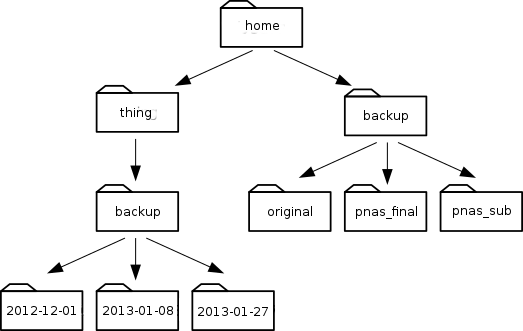
Challenge:
lsReading ComprehensionAssuming a directory structure as in Question #4, if
pwddisplays/home/backup, and-rtellslsto display things in reverse order, what command will display:
ls pwdls -r -Fls -r -F /home/backup- Either #2 or #3 but not #1.
Nelle’s Pipeline: Organizing Files
Knowing just this much about files and directories, Nelle is ready to organize
the files that the protein assay machine will create. First, she creates a
directory called north-pacific-gyre (to remind herself where the data came
from). Inside that, she creates a directory called 2012-07-03, which is the
date she started processing the samples. She used to use names like
conference-paper and revised-results, but she found them hard to understand
after a couple of years. (The final straw was when she found herself creating a
directory called revised-revised-results-3.)
Sorting Output
Nelle names her directories “year-month-day”, with leading zeroes for months and days, because the shell displays file and directory names in alphabetical order. If she used month names, December would come before July; if she didn’t use leading zeroes, November (‘11’) would come before July (‘7’). Similarly, putting the year first means that June 2012 will come before June 2013.
Each of her physical samples is labelled according to her lab’s convention with
a unique ten-character ID, such as “NENE01729A”. This is what she used in her
collection log to record the location, time, depth, and other characteristics of
the sample, so she decides to use it as part of each data file’s name. Since the
assay machine’s output is plain text, she will call her files NENE01729A.txt,
NENE01812A.txt, and so on. All 1520 files will go into the same directory.
Now in her current directory data-shell, Nelle can see what files she has
using the command:
This is a lot to type, but she can let the shell do most of the work through what is called tab completion. If she types:
and then presses tab (the tab key on her keyboard), the shell automatically completes the directory name for her:
If she presses tab again, Bash will add 2012-07-03/ to the command, since it’s the only possible completion. Pressing tab again does nothing, since there are more than one possibilities. Pressing tab twice when this is the case brings up a list of all the files, and so on. This is called tab completion, and we will see it in many other tools as we go on.
Key Points
The file system is responsible for managing information on the disk.
Information is stored in files, which are stored in directories (folders).
Directories can also store other directories, which forms a directory tree.
cdpath changes the current working directory.lspath prints a listing of a specific file or directory;lson its own lists the current working directory.pwdprints the user’s current working directory./on its own is the root directory of the whole file system.A relative path specifies a location starting from the current location.
An absolute path specifies a location from the root of the file system.
..means ‘the directory above the current one’;.on its own means ‘the current directory’.Most files’ names are
something.extension. The extension isn’t required, and doesn’t guarantee anything, but is normally used to indicate the type of data in the file.
Gabriel Devenyi, Christina Koch, and Ashwin Srinath (eds): “Software Carpentry: The Unix Shell.” Version 2016.06, June 2016, https://github.com/swcarpentry/shell-novice