Finding Things
Objectives
Use
grepto select lines from text files that match simple patterns.Use
findto find files whose names match simple patterns.Use the output of one command as the command-line argument(s) to another command.
Background
In the same way that many of us now use ‘Google’ as a verb meaning ’to find’, Unix programmers often use the word ‘grep’. ‘grep’ is a contraction of ‘global/regular expressions/print’, a common sequence of operations in early Unix text editors. It is also the name of a very useful command-line program.
grep finds and prints lines in files that match a pattern. For our examples,
we will use a file that contains three haikus taken from a 1998 competition in
Salon magazine. For this set of examples, we’re going to be working in the
writing subdirectory:
Forever, or Five Years We haven’t linked to the original haikus because they don’t appear to be on Salon’s site any longer. As Jeff Rothenberg said, “Digital information lasts forever — or five years, whichever comes first.” Luckily, popular content often has backups.
Let’s find lines that contain the word ’not’:
Here, ’not’ is the pattern we’re searching for. The grep command searches
through the file, looking for matches to the pattern specified. To use it type
grep, then the pattern we’re searching for and finally the name of the file
(or files) we’re searching in.
The output is the three lines in the file that contain the letters ’not’.
Let’s try a different pattern: ‘The’.
This time, two lines that include the letters ‘The’ are outputted. However, one instance of those letters is contained within a larger word, ‘Thesis’.
To restrict matches to lines containing the word ‘The’ on its own, we can give
grep with the -w flag. This will limit matches to word boundaries.
Note that a ‘word boundary’ includes the start and end of a line, so not just
letters surrounded by spaces. Sometimes we don’t want to search for a single
word, but a phrase. This is also easy to do with grep by putting the phrase in
quotes.
We’ve now seen that you don’t have to have quotes around single words, but it is useful to use quotes when searching for multiple words. It also helps to make it easier to distinguish between the search term or phrase and the file being searched. We will use quotes in the remaining examples.
Another useful option is -n, which numbers the lines that match:
Here, we can see that lines 5, 9, and 10 contain the letters ‘it’.
We can combine options (i.e. flags) as we do with other Unix commands. For
example, let’s find the lines that contain the word ’the’. We can combine the
option -w to find the lines that contain the word ’the’ and -n to number the
lines that match:
Now we want to use the option -i to make our search case-insensitive:
Now, we want to use the option -v to invert our search, i.e., we want to
output the lines that do not contain the word ’the’.
grep has lots of other options. To find out what they are, we can type:
Challenge: Using
grepWhich command would result in the following output:
grep "of" haiku.txtgrep -E "of" haiku.txtgrep -w "of" haiku.txtgrep -i "of" haiku.txt
Wildcards
grep’s real power doesn’t come from its options, though; it comes from the
fact that patterns can include wildcards. (The technical name for these is
regular expressions, which is what the ’re’ in ‘grep’ stands for.) Regular
expressions are both complex and powerful; if you want to do complex searches,
please look at the lesson on our website. As a taster, we can find lines that
have an ‘o’ in the second position like this:
We use the -E flag and put the pattern in quotes to prevent the shell from
trying to interpret it. (If the pattern contained a *, for example, the shell
would try to expand it before running grep.) The ^ in the pattern anchors
the match to the start of the line. The . matches a single character (just
like ? in the shell), while the o matches an actual ‘o’.
Using find
While grep finds lines in files, the find command finds files themselves.
Again, it has a lot of options; to show how the simplest ones work, we’ll use
the directory tree shown below.
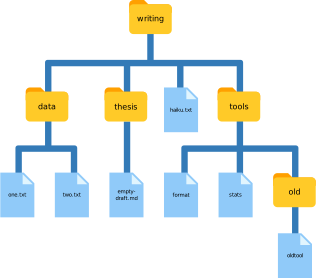
Nelle’s writing directory contains one file called haiku.txt and three
subdirectories: thesis (which contains a sadly empty file, empty-draft.md);
data (which contains three files LittleWomen.txt, one.txt and two.txt);
and a tools directory that contains the programs format and stats, and a
subdirectory called old, with a file oldtool.
For our first command, let’s run find ..
As always, the . on its own means the current working directory, which is
where we want our search to start. find’s output is the names of every file
and directory under the current working directory. This can seem useless at
first but find has many options to filter the output and in this lesson we will
discover some of them.
The first option in our list is -type d that means ’things that are
directories’. Sure enough, find’s output is the names of the five directories
in our little tree (including .):
Notice that the objects find finds are not listed in any particular order. If
we change -type d to -type f, we get a listing of all the files instead:
Now let’s try matching by name:
We expected it to find all the text files, but it only prints out ./haiku.txt.
The problem is that the shell expands wildcard characters like * before
commands run. Since *.txt in the current directory expands to haiku.txt, the
command we actually ran was:
find did what we asked; we just asked for the wrong thing.
To get what we want, let’s do what we did with grep: put *.txt in single
quotes to prevent the shell from expanding the * wildcard. This way, find
actually gets the pattern *.txt, not the expanded filename haiku.txt:
Listing vs. Finding
ls and find can be made to do similar things given the right options, but
under normal circumstances, ls lists everything it can, while find searches
for things with certain properties and shows them.
As we said earlier, the command line’s power lies in combining tools. We’ve seen
how to do that with pipes; let’s look at another technique. As we just saw,
find . -name '*.txt' gives us a list of all text files in or below the current
directory. How can we combine that with wc -l to count the lines in all those
files?
The simplest way is to put the find command inside $():
When the shell executes this command, the first thing it does is run whatever is
inside the $(). It then replaces the $() expression with that command’s
output. Since the output of find is the four filenames ./data/one.txt,
./data/LittleWomen.txt, ./data/two.txt, and ./haiku.txt, the shell
constructs the command:
which is what we wanted. This expansion is exactly what the shell does when it
expands wildcards like * and ?, but lets us use any command we want as our
own ‘wildcard’.
It’s very common to use find and grep together. The first finds files that
match a pattern; the second looks for lines inside those files that match
another pattern. Here, for example, we can find PDB files that contain iron
atoms by looking for the string ‘FE’ in all the .pdb files above the current
directory:
Challenge Matching and Subtracting
The -v flag to grep inverts pattern matching, so that only lines which do
not match the pattern are printed. Given that, which of the following commands
will find all files in /data whose names end in s.txt (e.g., animals.txt
or planets.txt), but do not contain the word ’net’? Once you have thought
about your answer, you can test the commands in the data-shell directory.
find data -name '*s.txt' | grep -v netfind data -name *s.txt | grep -v netgrep -v "temp" $(find data -name '*s.txt')- None of the above.
Challenge:
findPipeline Reading ComprehensionWrite a short explanatory comment for the following shell script:
Challenge: Finding Files With Different Properties
The find command can be given several other criteria known as ’tests’ to
locate files with specific attributes, such as creation time, size, permissions,
or ownership. Use man find to explore these, and then write a single command
to find all files in or below the current directory that were modified by the
user ahmed in the last 24 hours.
You will need to use three tests: -type, -mtime, and -user.
The value for -mtime will need to be negative—why?
Key Points
findfinds files with specific properties that match patterns.grepselects lines in files that match patterns.--helpis a flag supported by many bash commands, and programs that can be run from within Bash, to display more information on how to use these commands or programs.man commanddisplays the manual page for a given command.$(command)inserts a command’s output in place.
In this exercise (and the ones leading up to it), we’ve talked a lot about text. However, not all files contain just text (maybe your data is stored in a database or is an image), and not all tasks are “texty” in nature. As we’ve seen thusfar, the shell is very text-centric, so dealing with non-text can sometimes be tricky. It’s important to understand that the shell is very old and is not necessarily the tool for every job. It has certainly proven to be incredibly flexible and powerful given its age, but, as is Unix philosophy, programs shouldn’t try to do everything. They should do one thing and do it well. The shell is an incredibly powerful tool for orchestrating operations for a computer but has inherent limitations related to text — it’s a command-line interpreter; it works with text.
The point of this aside is just to contextualize the shell a bit. So far we’ve been submerged in the terminal, and while that’s not a bad thing, it is just one thing. The world is not inherently texty, and with modern advancements in computing, we are more often than before dealing with non-text data. So before you slam down the ol’ Ctrl+Alt+T, make sure it’s the right tool for the job (disclaimer: it still very often is).
Gabriel Devenyi, Christina Koch, and Ashwin Srinath (eds): “Software Carpentry: The Unix Shell.” Version 2016.06, June 2016, https://github.com/swcarpentry/shell-novice