Conway's Game of Life
Objectives
- Complete a more sizable project that requires multiple functions
- Gain familiarity with common design patterns such as update-display and looping over multidimensional lists
Background
The Game of Life was invented in 1970 by mathematician John Conway, inspired by John von Neumann’s earlier attempts to find a hypotheticl machine that could make copies of itself. In his quest to do so, von Neumann developed the idea of Cellular Automata, which are abstract systems modeled by grids where each “cell” has a state, and rules modify this state based on the states of a cell’s neighbors. von Neumann was in fact successful in creating a complicated set of rules such that an arrangement of cell’s would create a replica of itself. Conway’s Game of Life remains the most well-known example of a Cellular Automaton.
Here’s what it looks like!
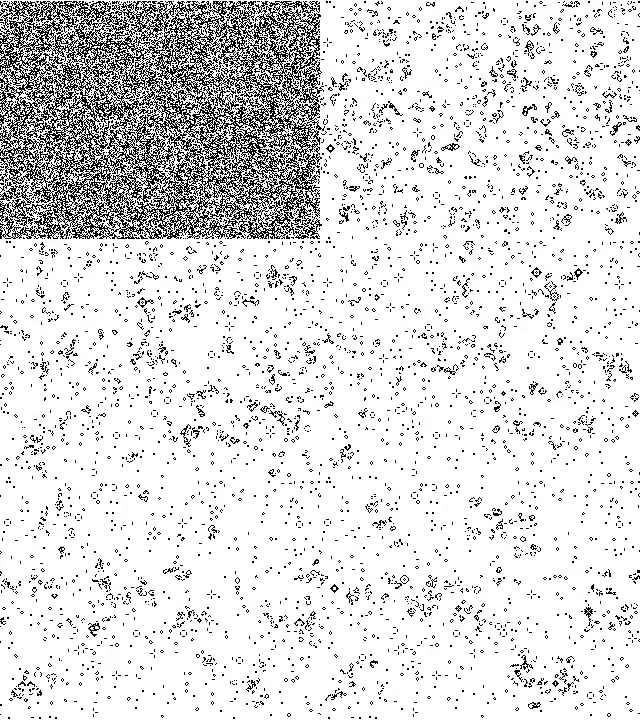
You can see a working simulator here—feel free to play with it a bit, it’s really fun!
In this exercise, you will write a program which simulates Conway’s Game of Life in the console! This is certainly the largest program we will have written so far in this class, but don’t feel daunted! We will break the problem down into a few functions that are well within your ability to write—and the coaches are here to help you as you need!
The Grid
Conway’s Game of Life takes place on a grid of cells, where each cell has a state. Now, this grid is actually supposed to be infinite, but we will get to that in a bit. For now, we will make our grid square with width and height dim, a positive integer. How can we model this grid in our program?
The cells in the Game of Life only have two possible states: alive or dead. With this in mind, it makes sense for us to keep track of this state with a Boolean—True means alive and False means dead.
How can we keep track of all of these cells at once? We can use lists!
Now, we could just make one giant list with all of the states, but there’s a much better solution! We can make our grid a two dimensional list—that is, a list of lists—filled with random Boolean values.
Write a function: gen_grid(dim)
You should write a function, gen_grid, which takes in a positive integer dim (for dimension) and returns a list of dim many lists, each of which has dim many random Boolean values. This can be done with either nested list comprehension or nested loops, take your pick!
How do we access values in a two dimensional list like the output of gen_grid? We use indexing, just like any other list! If grid is our list of lists, we can see that grid[0] itself is a list of Booleans. So, we can then consider grid[0][0], the first item in this first list in our list of lists! Thus, to generalize, we can see that if we take grid[x][y] for some x and y between 0 and dim, the result will be the value located y into the xth list in grid—which we can consider to have the coordinates (x, y).
The Rules
Now that we have our grid, we must consider the rules. Conway’s Game of Life has four rules:
- Any live cell with fewer than two live neighbors dies, as if caused by underpopulation.
- Any live cell with more than three live neighbors dies, as if by overcrowding
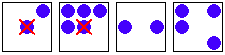
- Any live cell with two or three live neighbors lives on to the next generation
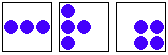
- Any dead cell with exactly three live neighbors becomes a live cell.
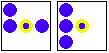
As you can see, all of these rules depend on counting the number of neighbors of a particular cell. So, let us take a quick intermission from our consideration of the rules and investigate how to calculate a cell’s neighbors!
Neighbors
A cell, located for example at
(x, y), can have up to 8 possible neighbors: that is, to it’s left and right, above it and below it, and to the four diagonal positions between those.

How do we reference these cells by indexing our
gridvariable? We can see that, assumingxrepresents our horizontal axis andyour vertical, that neighbor 2 has position (x, y - 1), and similarly neighbor 4 has position (x + 1, y). Neighbor 1 has position (x - 1, y - 1). So, we can look at every neighbor by considering every possible position that is different from (x, y) by 1 in either (or both) coordinate(s).But, what about when our cell is against a wall? Remember the handy
%operator! For example, look at the following output ofi % 5for every number up to (but not including) 20.
As you can see, what this operator really does is let our numbers wrap around—when we get to the number after the
%, 5 in this case, it’s as if we started back around at 0! This might sound confusing, but you actually do it in your head every day. When you read a clock, it’s as if we read it% 12. That is,0amis really12pm, and1pmis the same as13am, and so on!You may be wondering, what does this have to do with the Game of Life?
Well, when a cell is against a wall, we can have it loop around so that we consider it’s neighbor on the opposite side of the grid! We can do so by putting our indexes in a
%operator. For example, in order to check for a cell’s neighbor 4 on the diagram above, we can checkgrid[(x + 1) % len(grid)][y]. This will let the index wrap around, so when we exceed the size of the grid, we wrap around to the other side! Now, it’s as if our grid were infinite!Write a function:
check_neighbors(grid, x, y)Now, you should write a function calledcheck_neighborswhich takes ingrid, our list of lists representing a field, and a set of coordintes,xandy, and returns the number of living neighbors of that cell.
Now that we can check a cell’s neighbors, our next step is to apply the above rules!
In order to do so, we must go through every single cell in our grid, check how many neighbors it has, and let it live or die based on the above conditions.
Write a function: update_grid(grid)
In order to apply the rules to the entire grid, we will write a function update_grid which takes in grid (our list of lists), applies the rules above once, and returns the new grid.
This function can be a little tricky. The first thing to note is that we want to apply the rules to every cell at once—if we apply the rules to one cell before we’re one, it will change the outcome of applying the rules to the rest of the cells! This means that at the start of our function, we should make a copy of our grid so that we can check the rules with the copy and change the original. Making a copy of a list in python is actually a little tricky—you can’t just say grid_copy = grid, because lists are immutable and so changing grid after this would also change grid_copy. We can get around this by copying grid term by term, with loops or list comprehensions. For example, we can write grid_copy = [[grid[x][y] for y in range(len(grid))] for x in range(len(grid))]
Displaying
Alright, now we’ve got a bunch of functions written, but how do we actually look at the grid? We will have to take a hint from the previous Ascii Art assignment.
Write a function: display_grid(grid)
We will write a function called display_grid which takes in our grid and prints it out to the console so we can look at it in all it’s glory!
This function should loop through the grid, printing a certain symbol of your choice (for example "o") to represent a live cell (that is, when grid[x][y] is True), and displaying a different symbol of your choice for dead cells (such as " ").
Putting it all Together
Now, we have all of the logic we need, we just have to put it all together!
The general process is as follows:
- Generate a random grid.
- Display the grid.
- Update the field.
- Go back to step 2.
So, we want to define a grid variable using gen_grid. Then, we want to write a while loop that runs forever, which calls our display_grid and update_grid functions. And that’s it!
Bonus
If you want, there’s lots more you can do with Conway’s Game of Life! You can try out different rules to see what happens, and you can also add more symbols!